Nothing’s more frustrating than needing to print an important document—only to find your Brother printer showing “Offline.” Don’t worry, this is a common issue, and in most cases, you can fix it yourself in just a few minutes.
In this guide, we’ll walk you through the causes, step-by-step fixes, and preventive tips to keep your Brother printer
Why Is My Brother Printer Offline?
Your Brother printer might appear offline for several reasons:
- Loose or disconnected cables
- Wi-Fi or network connection issues
- Printer driver errors or outdated software
- Wrong printer settings in Windows or Mac
- Printer stuck in sleep mode or paused, not running smoothly.
Step-by-Step Fixes for Brother Printer Offline Error
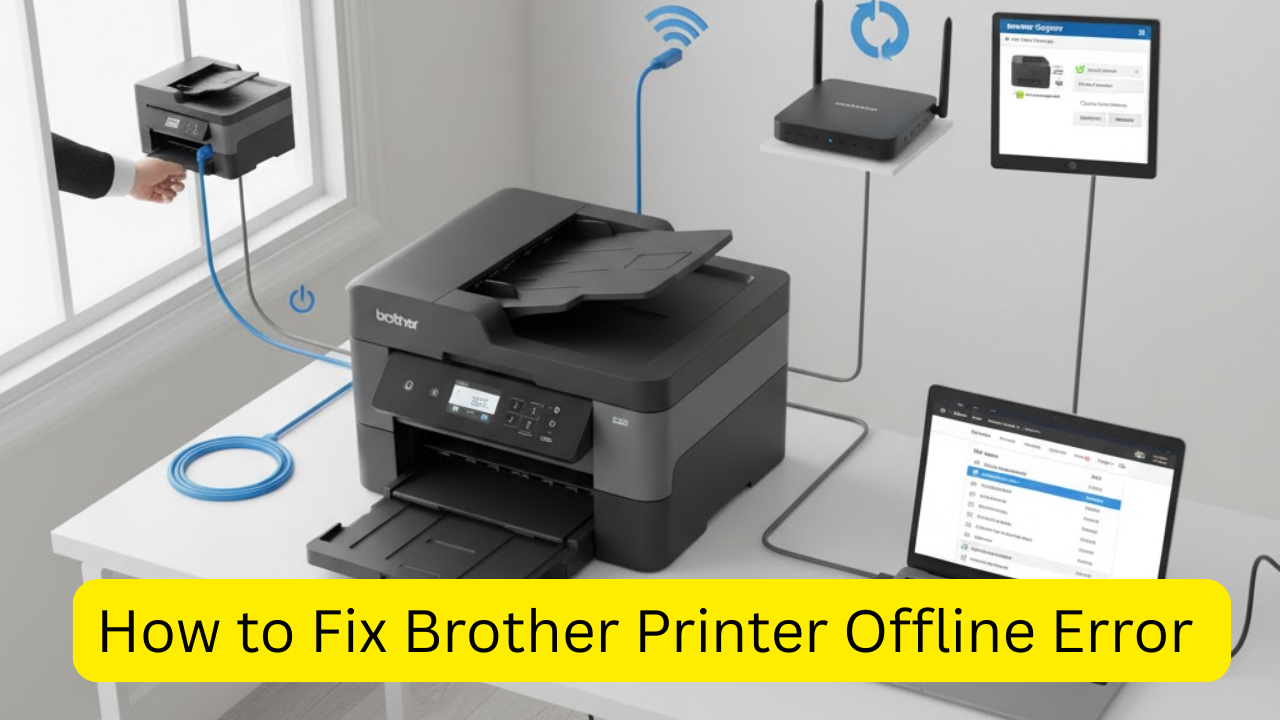
1. Check Physical Connections
Start with the basics:
- Ensure the USB cable is securely connected (for wired printers).
- If using Wi-Fi, make sure your printer and computer are on the same network.
- Restart your Wi-Fi router, computer, and printer to refresh connections.
Tip: For wireless printers, check that the Wi-Fi light on your Brother printer is solid (not blinking).
Set Brother Printer as Default
If another printer is set as default, your Brother device may not respond.
On Windows:
- Open Control Panel → Devices and Printers
- Right-click your Brother printer → Set as Default Printer
On Mac:
- Go to System Preferences → Printers & Scanners
- Select your Brother printer and click Set Default.
Unpause or Resume Printing
Sometimes the print queue is paused.
- Go to Devices and Printers
- Right-click your Brother printer → See what’s printing.
- Click Printer from the top menu.
- Uncheck Pause Printing or Use Printer Offline
Restart the Print Spooler Service (Windows Only)
The Print Spooler controls print jobs. Restarting it can fix offline issues.
- Press Windows + R, type services.msc, and hit Enter.
- Scroll to Print Spooler
- Right-click → Restart
Reinstall or Update Brother Printer Drivers
Outdated or corrupted drivers often cause offline errors.
- Visit the official Brother Support Website
- Enter your printer model
- Download and install the latest drivers for your OS.
Check IP Address and Network Configuration
For wireless models:
- Print a Network Configuration Page from your printer’s control panel.
- Make sure the IP address listed matches what’s on your computer’s printer settings.
If not, remove and re-add your printer using the correct IP.
Bonus Tip: Keep Your Brother Printer Online Automatically
To avoid future “Offline” errors:
- Keep your printer’s firmware up to date.
- Avoid frequent network name or password changes
- Use a static IP for wireless printers
- Regularly restart your router and printer.
Final Thoughts
Brother printers are known for their reliability, but connectivity issues can happen. By following the steps above—checking connections, resetting the spooler, and updating drivers—you can usually get your printer back online in minutes.
Read:-Instant Epson Printer Support: Fix Wi-Fi, Ink, and Paper Jams Quickly