If you own a Dell Color Laser Printer and suddenly see the Error 093-XXX message on your screen, don’t panic—you’re not alone. This common printer error usually points to a toner density sensor or developer unit problem. In this guide, we’ll walk you through what causes the Dell printer error 093 and how to fix it quickly and safely.
What Does Dell Printer Error 093 Mean?
The error 093-XXX, where “XXX” is a three-digit number (such as 093-931, 093-970, etc.), usually denotes the fault with the toner density sensor or toner cartridges and developer units for that matter.
A specific color is associated with each error type:
- 093-931 – Cyan toner sensor error
- 093-932 – Magenta toner sensor error
- 093-933 – Yellow toner sensor error
- 093-934 – Black toner sensor error
Common Causes of Error 093 on Dell Printers
- Dirty or faulty toner density sensors
- Non-genuine or low-quality toner cartridges
- Developer unit failure
- Loose or improperly seated toner cartridges
- Internal firmware or calibration error
Step-by-Step Fix for Dell Printer Error 093
Follow these troubleshooting steps to clear the error and get your printer running again.
Power Cycle the Printer
- Turn off your Dell printer.
- Unplug the power cord from the outlet.
- Wait at least 2 minutes.
- Plug it back in and restart the printer.
Sometimes a simple reset clears temporary sensor glitches.
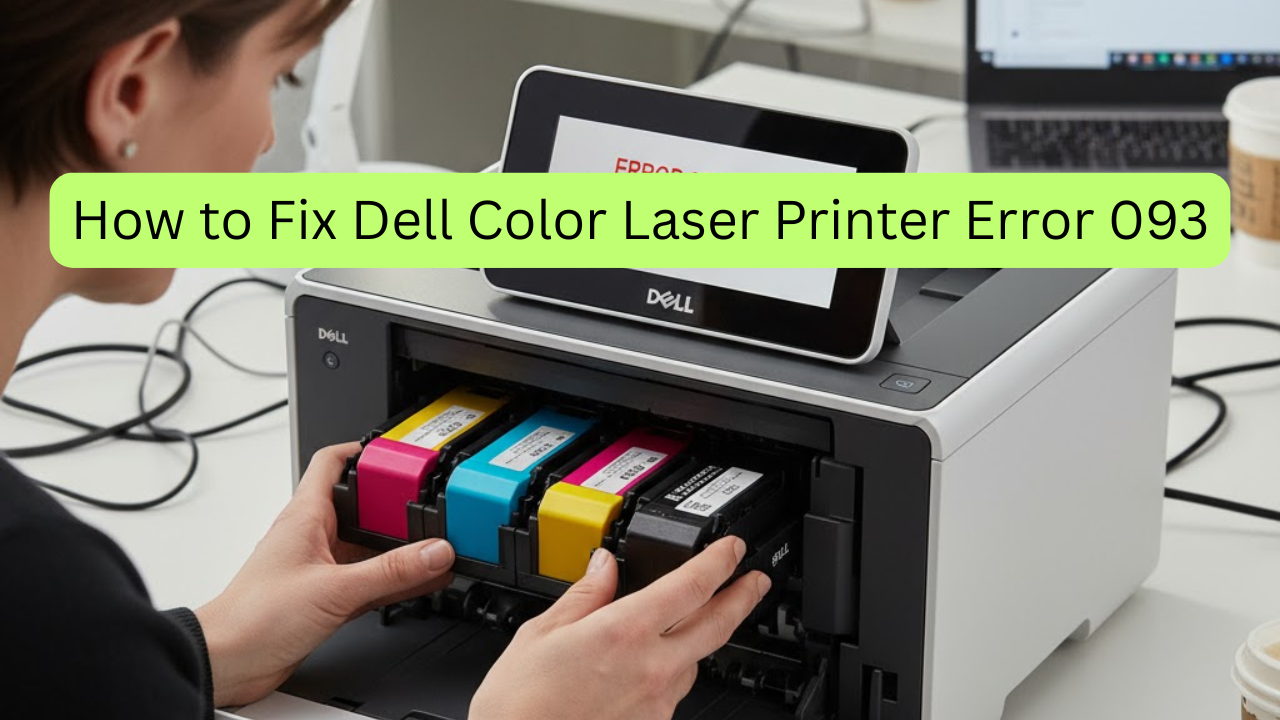
Reseat the Toner Cartridges
- Open the printer’s front cover.
- Remove each toner cartridge carefully.
- Check for any toner leaks or dust around the sensor area.
- Reinstall each cartridge firmly in its correct slot.
- Close the cover and restart the printer.
Clean the Toner Density Sensors
- Power off the printer and unplug it.
- Locate the toner density sensors (usually beneath the toner or developer units).
- Gently clean the sensors using a soft, lint-free cloth or compressed air.
- Avoid touching any electrical components directly.
Check or Replace the Developer Unit
If cleaning doesn’t work, the developer unit for the affected color might be faulty.
- Replace the developer unit for the color indicated in the error message.
- Run a developer calibration or color registration after replacement.
Update Printer Firmware
Outdated firmware can also trigger sensor and toner errors.
- Visit Dell’s official support website.
- Enter your printer model (e.g., Dell C2665dnf, Dell 2150cdn, etc.).
- Download and install the latest firmware update.
Contact Dell Support.
If none of the above fixes the issue, contact Dell Technical Support. The printer may need professional servicing or a sensor board replacement.
Pro Tips to Prevent Future Errors
- Always use genuine Dell toner cartridges.
- Regularly clean your printer’s interior and toner area.
- Avoid exposing toner cartridges to excessive heat or light.
- Run the printer calibration monthly to maintain color accuracy.
Final Thoughts
The Dell Color Laser Printer Error 093 might look intimidating, but in most cases, it’s caused by a simple sensor or cartridge issue that you can fix at home. Following the steps above should help you restore your printer’s performance and prevent future interruptions.