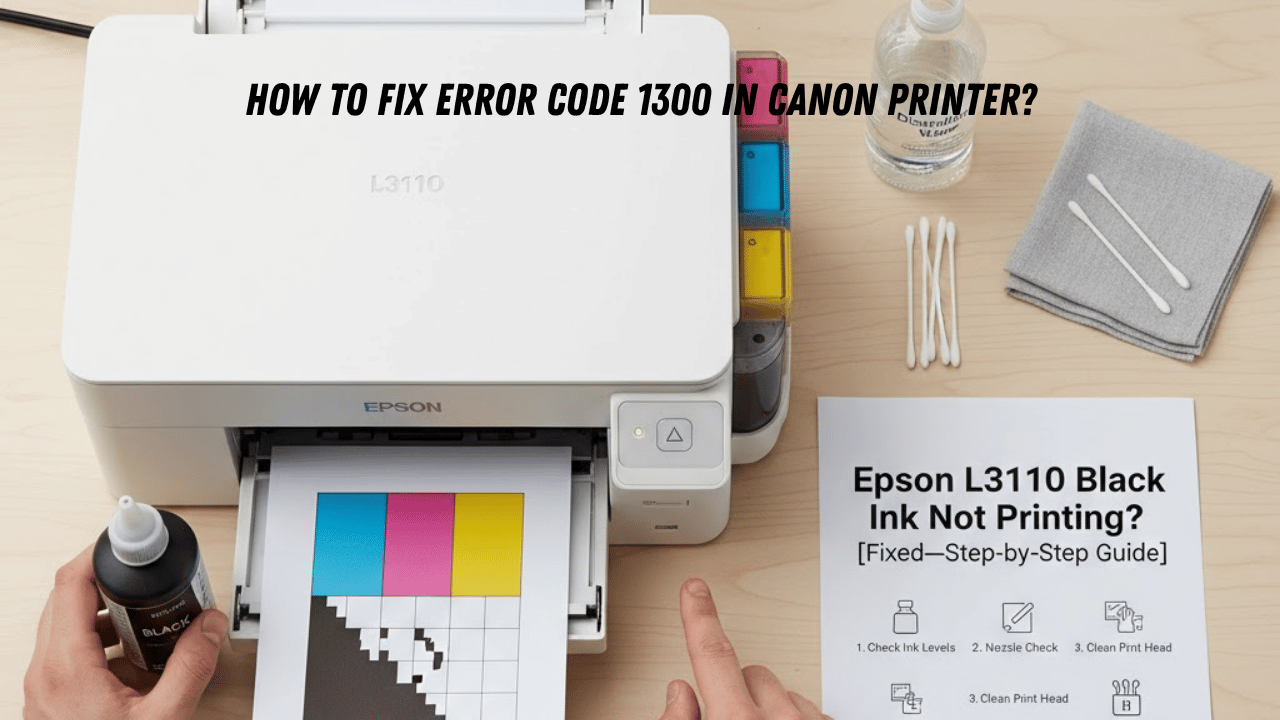
Is your Epson L3110 printer not printing black ink even though the ink tank looks full? Don’t worry—you’re not alone! This is one of the most common issues faced by Epson EcoTank users. The good news is that it’s usually easy to fix at home.
In this guide, we’ll explain why your L3110 isn’t printing black and how to fix it quickly with simple troubleshooting steps.
Common Reasons Why Epson L3110 Black Ink Is Not Printing
Before jumping into the fixes, let’s understand why this happens:
- Clogged printhead nozzles—the most common reason! Dried ink blocks the black nozzle.
- Air bubbles in the ink line—This prevents ink from reaching the printhead.
- Empty or improperly filled black ink tank—Sometimes the ink looks full but isn’t feeding properly.
- Incorrect printer settings—The print mode or driver might be misconfigured.
- Outdated or corrupted printer driver—Can cause communication or color issues.
Check Ink Levels and Tank Flow
- Open the ink tank lid.
- Make sure there’s enough black ink in the designated tank.
- Ensure the air vent on the tank cap is open (small hole on the cap). If closed, open it carefully—this allows ink to flow properly.
Run a Nozzle Check
- Load A4 paper into the printer.
- On your computer, open Control Panel → Devices and Printers → Epson L3110 → Printing Preferences.
- Go to Maintenance → Nozzle Check.
- Print the test pattern.
If the black pattern is missing or broken, move to the next step.
Perform Head Cleaning (Up to 3 Times)
- Go to Maintenance → Head Cleaning.
- Select Black or All Colors, then click Start.
- Wait 5–10 minutes for the cleaning to complete.
- Run another Nozzle Check to verify improvement.
🔸 If it still doesn’t print black after 3 cleanings, don’t overdo it—it wastes ink. Proceed to the manual cleaning method below.
Manual Printhead Cleaning (Deep Cleaning Method)
Note: Do this carefully to avoid damaging your printer.
You’ll need:
- A syringe or ink refill tool
- Warm distilled water or printhead cleaning solution
- Soft tissue or cotton swabs
Bonus Tips to Prevent the Issue
- Print at least once a week to keep ink flowing.
- Always use genuine Epson inks (code 003 for L3110).
- Keep the printer covered when not in use to avoid dust buildup.
- Never let ink levels drop too low—refill when 1/4 full.
Final Thoughts
When your Epson L3110 stops printing black ink, it’s usually due to a clogged printhead or air in the ink line—both are fixable at home with a little patience.
By following the steps above, you can restore full print quality and avoid unnecessary service costs.
If your printer still doesn’t print black after multiple cleaning attempts, it might be time to contact Epson Support or a professional technician for deep servicing.
Author’s Note
This troubleshooting guide is based on real-world fixes from Epson technicians and user experiences.
Keep your L3110 maintained regularly—a little care can keep it printing perfectly for years.